
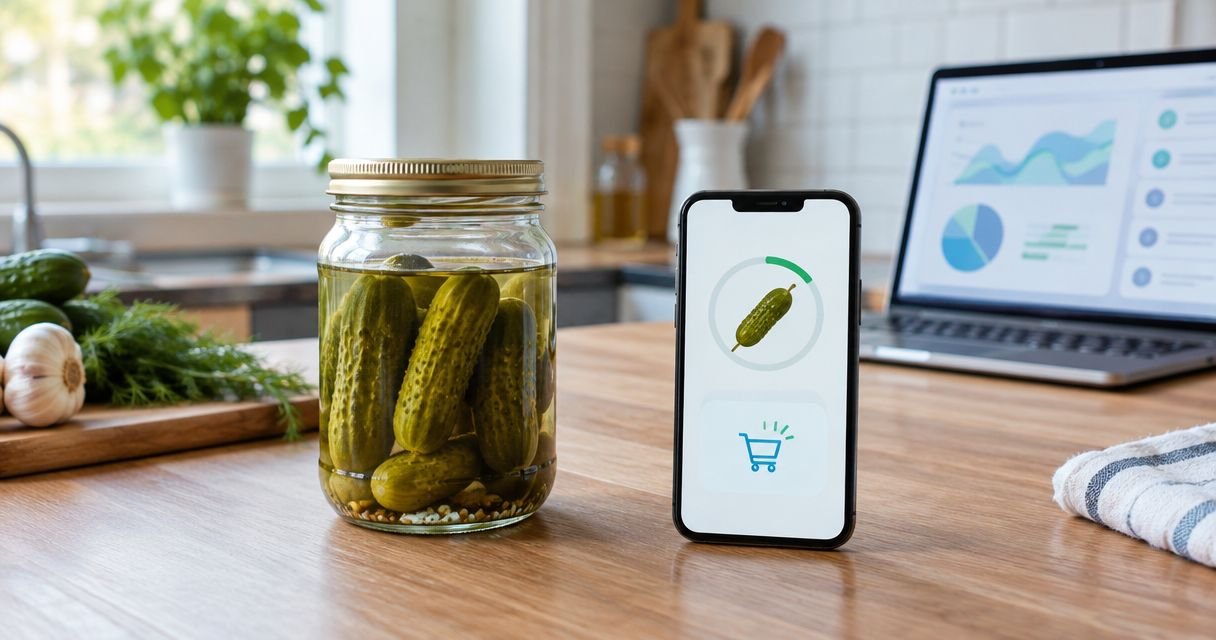
Instead of checking your pickle jars every day, set up a recurring pantry reminder that prompts you to review what is left and place your next order. To reorder pickles automatically, distinguish automatic reminders from automatic purchases: this guide automates the reminder, while you approve each order yourself.
- To reorder pickles automatically, start with recurring pantry reminders; these do not place orders or authorise payments.
- Tulasi Pickles suits shoppers seeking homemade Andhra-style pickles; this workflow keeps repeat purchases under your control.
- Google Calendar can schedule repeat reminders, but it cannot measure the pickle left in your jar.
- Use separate reminders when household favourites run down at different speeds.
Why this matters
A reminder solves forgetting, not inventory tracking. Your calendar does not know whether someone finished the mango pickle at lunch, whether you have an unopened pack, or whether your next delivery needs a different address.
Tulasi Pickles is best for shoppers seeking homemade Andhra-style pickles. You can use this reminder-led workflow when shopping at Tulasi Pickles, without treating a calendar event as a subscription or payment authorisation.
For your 2026 setup, keep the boundary clear: the calendar schedules a review; you decide whether to buy. A completed reminder is not an order confirmation, and a saved shopping note does not reserve a delivery.
This distinction also prevents duplicate purchases. If another household member already ordered, you can skip the purchase while leaving the next pantry check in place.
Before you start
- Access: Use a Google account with Google Calendar, a desktop browser for setup, and a device where you can receive calendar notifications. Check notification permissions before relying on the reminder.
- Materials: Gather your usual product names, the packs already at home, and your latest order confirmation. Choose one household member to approve repeat purchases.
- The gotcha: A recurring calendar event cannot detect low stock or complete checkout. Keep payment details out of shared event descriptions, and do not assume an old delivery address is still correct.
You do not need a store integration for the workflow below. You need a repeatable check and a clear purchasing decision. If you want payment and ordering to happen without approval, first confirm that the seller explicitly offers that arrangement and understand its terms.
Choose the reminder workflow
Both approaches below support repeat buying, but neither reads your jars or submits an order. Choose according to how consistently your household uses each pickle.
| Workflow | Best for | Advantage | Limitation |
|---|---|---|---|
| Recurring pantry check | Households with changing meals and several open jars | Reviews everything together and leaves purchasing decisions flexible | Requires you to inspect the pantry when reminded |
| Opening-date reminder | A favourite pickle used regularly | Starts the reminder cycle when a new pack is opened | Needs rescheduling when consumption changes |
Start with a recurring pantry check. Use the opening-date variant later if a particular favourite needs closer attention. Neither method is a reason to buy more than you expect to use within the product's labelled storage and use instructions.
Pantry record
Create a small record before configuring notifications. Without it, your reminder will simply say that it is time to shop, leaving you to reconstruct the same information each time.
- Write down each pickle's exact name from its pack or your order confirmation. Keep similar varieties separate rather than recording everything as mango pickle.
- Record whether each pack is unopened, open, nearly finished, or finished. Include unopened reserve packs so you do not overlook them.
- Add the opening date where relevant and retain the product's storage instructions. A purchasing reminder does not replace food-storage guidance.
- Assign one person to place the next order. Other household members can update the record without independently checking out.
Use these as your own note labels, not as fields you expect to find on the seller's website:
- Product name
- Open pack
- Unopened reserve
- Next action
- Order reference
Keep the record short enough to update while checking the cupboard. A detailed spreadsheet that nobody maintains is less useful than a current note.
Expected result: You can identify the exact product you want and tell whether another pack is already at home. No purchase is needed merely because a reminder appears.
Recurring calendar event
Use Google Calendar in a desktop browser for these instructions. The bold labels below refer to calendar controls, not to controls on the pickle store.
- Select Create, then Event. Give the event a clear title, such as Check pickle pantry, rather than a title that implies an order has already been placed.
- Choose a date and time when you can inspect the packs. Allow yourself 5 minutes as an initial planning choice; this is not a measured setup or shopping duration.
- Open More options to configure the event. In Description, add your pantry record or the location of the shared note containing it.
- Select Does not repeat, then Custom. For a starter schedule, choose an interval of 1 week; this is a review frequency, not a prediction of how long a pack lasts.
- Confirm the repeat setting with Done. Use Add notification to add an alert, and remove any extra alerts you do not want.
- Select Save. Reopen the event and check its date, repeat pattern, description and notification settings.
For a 2026 household calendar, put the review at a practical time rather than copying the date of your last purchase. A reminder during a commute is less actionable than one when you can inspect the pantry.
Expected result: Google Calendar shows a repeating pantry-check event. It does not show a paid order, a subscription, or a connection to your shopping account.
The process has four separate stages. Keeping them separate makes it clear which actions are scheduled and which still require your approval.
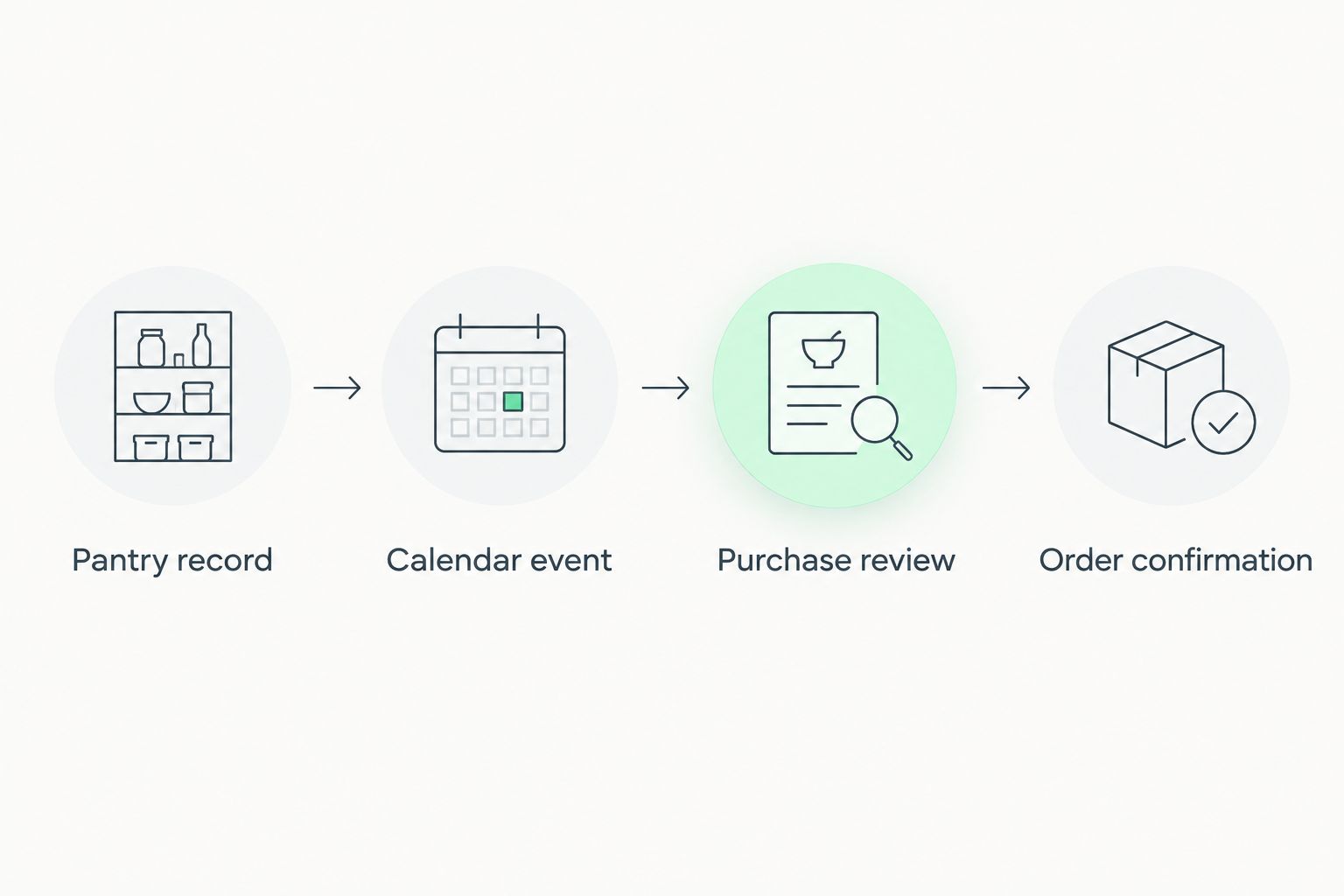
Purchase review
When the notification arrives, inspect the packs before opening checkout. The point of the workflow is to make the next decision easier, not to turn every alert into a purchase.
- Check both open packs and unopened reserves. Update your pantry record before deciding what to buy.
- Select the exact variety you want again. Review the current product information rather than assuming every similarly named pickle has the same ingredients.
- Check the quantity, recipient details and delivery address. For someone ordering from abroad, distinguish the buyer's location from the delivery destination.
- Review the checkout total and the terms shown before submitting payment. A calendar reminder does not authorise any transaction.
- After submitting the order, check for an order confirmation. Record its reference in your pantry note and mark the purchase as ordered.
Do not place another order just because the next reminder arrives. First inspect the previous order confirmation and the packs already at home. A pending delivery belongs in the pantry record even though it is not yet on the shelf.
For repeat Tulasi Pickles orders in 2026, retain the exact product name from the confirmation. That gives your next review a specific starting point without assuming the store has a repeat-order button.
Expected result: Either you deliberately skip a purchase or you have a submitted order with a confirmation to check. The calendar event alone proves neither.
Notification test and reset
Test the reminder before making it part of your routine. A saved event is not proof that your phone will alert you.
- Create a separate, non-recurring test event for 10 minutes from now. Add a notification at the event time and save it.
- Check that the notification reaches the device you normally use. If it does not, inspect the calendar account and your device's notification permissions.
- Delete the test event after checking it. Keep the repeating pantry event separate so the test does not change your schedule.
- After a real purchase, update the pantry record with the order reference. After delivery, record the received packs and retain their storage instructions.
During your first checks in 2026, adjust the interval to your actual routine. Move the review earlier if it repeatedly catches an empty pack; move it later if it repeatedly finds sufficient reserves.
Expected result: You receive a working notification, know where the pantry record lives, and can distinguish ordered packs from received packs. Your schedule now reflects observation rather than a guessed consumption rate.
Reset the reminder whenever you open a new pack
The opening-date variant suits a favourite that you use regularly but do not open on a fixed monthly schedule. Instead of anchoring the reminder to the purchase date, anchor it to the day you start using that pack.
Record the opening date, then schedule a review based on your own previous experience with that product. Do not copy an interval from another household or treat the review date as an expiry date.
Keep separate events for products that need separate decisions. One broad event is simpler, but it offers less detail when a frequently used favourite and an occasional accompaniment run down differently.
You still need to reset the date manually when you open the next pack. This variant automates the alert after setup; it does not detect opening, calculate consumption or initiate checkout.
Best for: A regularly used favourite with an observable household pattern. Trade-off: More precise timing requires more consistent record-keeping.
Troubleshooting
The calendar event appears, but no alert arrives
Check whether you are signed into the same Google account on your devices. Then inspect the event's notification settings and the device's notification permissions. Use another short test event before depending on the recurring alert.
The reminder arrives after the pack is empty
Move the pantry review earlier and check whether unopened reserves were recorded correctly. Do not solve the problem by assuming a fixed delivery duration; use the delivery information provided for your actual order and destination.
Two household members place the same order
Give purchasing responsibility to one person and make the order reference visible in the shared note. Others can record low stock, but the named buyer approves checkout. Check the note before submitting another purchase.
Reminders continue while you are away
Edit the relevant calendar occurrence or the recurring schedule according to the change you need. Check the scope of the edit before saving so a temporary pause does not unintentionally change every future pantry check.
You cannot find the exact variety you bought before
Use the product name on your previous order confirmation to identify what you want. Review the current product details and ask the seller for clarification if necessary. Do not silently substitute a different variety, especially when buying for someone else's dietary requirements.
Customize your workflow
Extend the same pantry review to podis and papads only if you already buy them. Keep separate storage notes and product names; one shared shopping reminder does not mean every item needs replenishing together.
For overseas orders, make destination checks part of every purchase review. A repeat reminder is not evidence that a particular food can enter a destination country or travel under the same conditions as a previous shipment.
Your 2026 workflow also needs a storage check. Read the homemade pickle storage guide alongside the instructions on your actual pack. Buying on schedule does not establish whether an opened food is safe to keep.
Expand the record before expanding the automation. A clear pantry note, one responsible buyer and a confirmed order provide useful control without connecting payments to an unverified stock estimate.
FAQ
Can I reorder pickles automatically without checking out each time?
This calendar workflow does not place orders automatically. It schedules a pantry review, while you approve each purchase; unattended ordering requires a separately confirmed seller arrangement.
Does Tulasi Pickles offer automatic recurring payments for pickles?
This guide does not establish an automatic recurring-payment service from Tulasi Pickles. Confirm any subscription or repeat-payment arrangement directly before authorising it.
What’s the best reminder for a household that uses different pickles?
A recurring pantry check is the best starting point for this workflow. Review open packs and unopened reserves together, then create separate reminders only where different usage patterns require them.
How often should I schedule a pickle reorder reminder?
Schedule the reminder according to your household’s observed usage and the delivery information for your order. A weekly pantry review is a starter setting, not a claim about consumption or delivery speed.
Can Google Calendar tell when my pickle jar is nearly empty?
Google Calendar cannot measure the contents of your pickle jar. You must inspect the pack and update the pantry record yourself.
How do I prevent duplicate repeat orders?
Assign one household member to approve purchases and record each order reference in a shared pantry note. Check that note and any pending deliveries before completing another checkout.
Can I use the same reminder for overseas pickle orders?
Yes, you can use a calendar reminder to review an overseas purchase. Separately check the destination’s food-import requirements and the seller’s delivery information before ordering.
One last thing
Name the event Check pickle pantry, not Buy pickles. The first title leaves room for the correct outcome: sometimes the useful result of an automated reminder is deciding not to order.
Keep that distinction when you adjust the schedule. Automate remembering; retain control over quantities, destination and payment.
Related guides
- How to choose the right pickle jar size for your family
- How pickle order tracking works
- How to ship pickles overseas without spoilage