

Instead of manually copying gift addresses between messages, organise your corporate pickle gift bulk order in one approved recipient register, then release each shipment against its own delivery record. This 2026 workflow takes you from gift-list collection to multi-address delivery tracking, with supplier confirmation before any order commitment.
- For a corporate pickle gift bulk order, confirm multi-address fulfilment before collecting final approvals.
- Tulasi Pickles suits buyers seeking homemade Andhra-style pickles; confirm corporate gifting arrangements directly.
- Use one recipient register for address validation, dietary preferences, shipment references and delivery exceptions.
- Keep overseas pickle gifts separate until destination and food-entry requirements are checked.
Why this matters
A corporate gift list is not a dispatch instruction. Each recipient needs an approved selection, a usable address and a shipment reference that remains connected to the original request.
Tulasi Pickles is best for corporate buyers specifically seeking homemade Andhra-style pickles. The brand sells vegetarian and non-vegetarian pickles and ships across India and overseas; confirm the proposed multi-address arrangement through Contact Us before treating this workflow as an accepted fulfilment plan.
For your 2026 gifting programme, separate the decisions: what you want to send, where each parcel goes and what the supplier has accepted. A shared spreadsheet can hold those decisions without implying that the website offers a bulk-upload facility or automated corporate ordering.
Before you start
- Access and ownership: Have a company-approved spreadsheet, a restricted storage location, a named gifting coordinator and an authorised order approver. Collect recipient permission to use delivery details for this purpose.
- Order materials: Prepare intended gift contents, recipient preferences, requested arrival dates and billing details. Ask the supplier to confirm quantities, packaging, destination coverage, dispatch arrangements and any gift-message request.
- The setup gotcha: A single commercial order does not automatically mean separate shipments to every address. Confirm how the supplier accepts address lists, allocates shipment references and handles changes before releasing the list.
The bold field names below are worksheet labels you create, not website buttons or claims about a supplier portal. Keep your working register separate from the supplier-facing file so internal notes and unrelated employee information do not travel with the order.
Recipient register configuration
Build the list around recipients, not email threads. Use 1 recipient per row, even when several people work at the same office; only combine deliveries after explicitly approving a shared receiving arrangement.
- Create 3 worksheet tabs named Recipients, Dispatch and Changes. Add a campaign title containing 2026 so exported files remain identifiable.
- In Recipients, create Recipient ID, Recipient Name, Delivery Phone, Address, City, State, Postal Code and Country. Give each recipient a stable identifier unrelated to their position in the sheet.
- Add Gift Selection, Gift Quantity, Dietary Preference, Ingredient Check, Requested Arrival Date and Recipient Approval. Treat the arrival date as a request until the supplier confirms the delivery plan.
- Ask recipients to verify their own delivery details and food preferences through your approved collection method. Record only what is necessary to select and deliver the gift; keep medical information out of the shared register.
- Check for duplicate recipient IDs, repeated people and incomplete addresses. Do not delete shared addresses automatically: colleagues and family members can legitimately receive separate parcels at the same location.
Expected result: Every intended recipient has a unique record, a confirmed destination and either an approved gift selection or a clearly marked unresolved question.
Store phone numbers and postal codes as text so formatting does not remove leading characters. For Indian addresses, check that the PIN code contains 6 digits; that is a format check, not proof that the address or delivery route is valid.
Gift and fulfilment configuration
Choose the delivery model before requesting final approval. These are planning options to discuss with the supplier, not confirmed Tulasi Pickles service packages.
| Delivery model | Best for | Advantage | Limitation |
|---|---|---|---|
| Individual-address dispatch | Teams sending gifts directly to recipients | Keeps delivery tied to each recipient | Requires accepted address handling and shipment-level tracking |
| Office consolidation | Recipients sharing a staffed workplace | Centralises receipt and internal distribution | Requires an office coordinator and local handover records |
| Separate overseas batch | Recipients outside India | Isolates destination-specific checks | Needs separate food-entry and shipping confirmation |
Use individual-address dispatch only after the supplier accepts the destination list and tracking process. Office consolidation is the better fit when the workplace can receive and distribute the gifts; it is not a substitute for checking recipient preferences.
- Group the register by Country, then by Gift Selection. Keep vegetarian and non-vegetarian requests distinct without assuming that every vegetarian item meets every ingredient restriction.
- Send a summary enquiry with recipient count, destination countries, intended contents, requested timing and the proposed delivery model. Share a redacted address sample first if the supplier only needs to assess the file structure.
- Ask Tulasi Pickles to confirm the exact selections, pack sizes, packaging arrangements, destination acceptance and method for returning shipment references. Request ingredient information for recipients who need it; do not infer allergen suitability from a category name.
- Record the response in Supplier Confirmation, alongside the date and the person who approved it. Keep unresolved packaging, message or ingredient requests marked as pending rather than converting silence into acceptance.
- Define 2 approval gates: commercial approval and recipient-data approval. Release the order only when both are complete and the supplier has acknowledged the final destination file.
Expected result: You have an accepted fulfilment plan, documented gift selections and a list that is ready for authorised release—not merely an enquiry awaiting answers.
For the 2026 order, preserve the approved contents as a dated snapshot. If a selection changes, obtain fresh approval for affected recipients instead of silently substituting another food item.
Dispatch register configuration
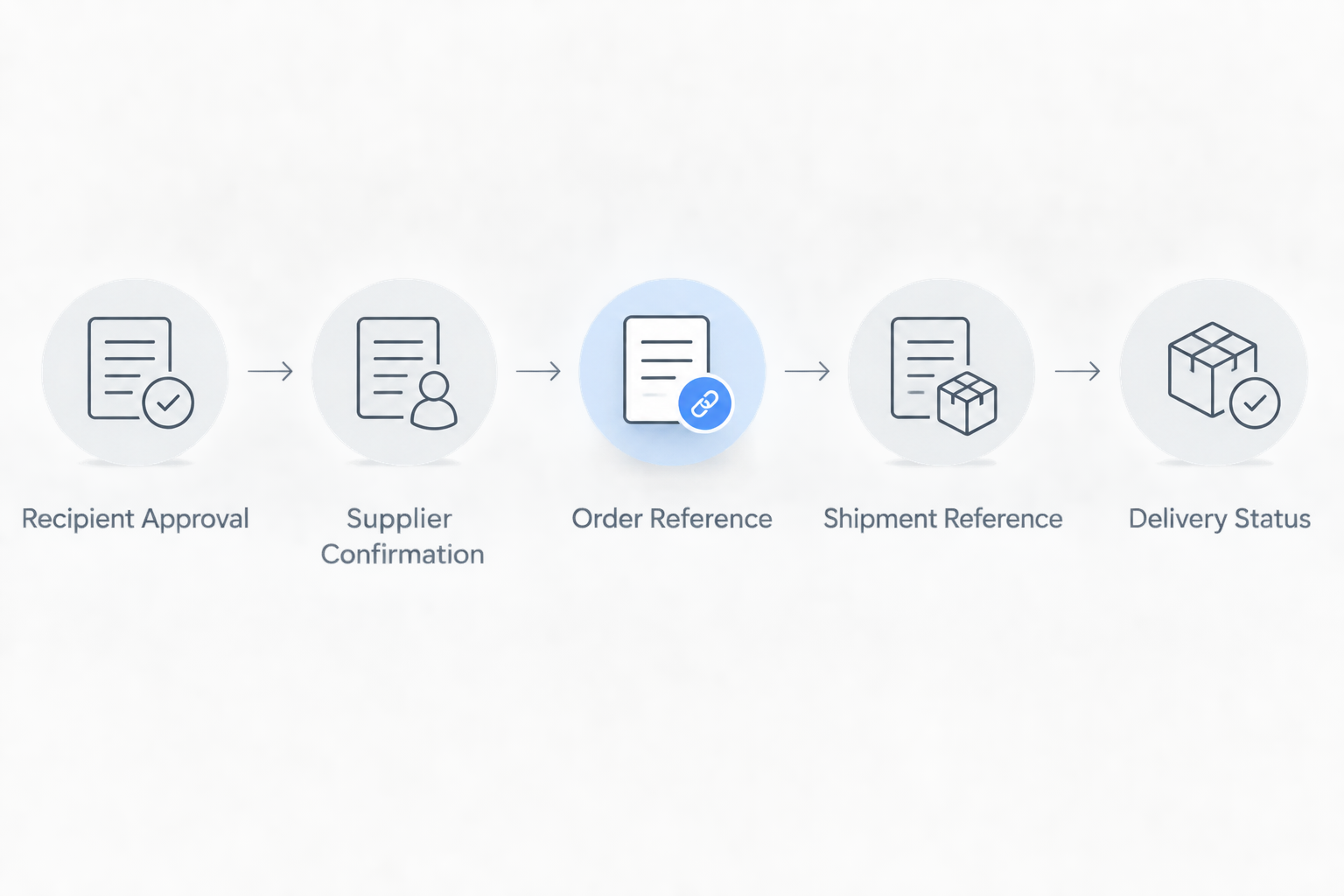
Keep the commercial order reference separate from shipment references. One order reference identifies the purchase; shipment references identify the parcels moving to individual destinations.
- In Dispatch, create Recipient ID, Order Reference, Shipment Reference, Carrier, Dispatch Date, Delivery Status, Last Update and Exception Owner. Copy reference values exactly as supplied.
- Agree how the supplier will return dispatch information before handing over the final file. Ask whether a recipient can receive multiple parcels, then allow multiple shipment rows against the same recipient ID when necessary.
- Match every returned shipment row to an approved recipient ID. Flag missing matches, repeated references and recipients without a shipment allocation; do not assume that a dispatch total proves every person is covered.
- Update Delivery Status using a controlled list: Awaiting Confirmation, Confirmed, Dispatched, Delivered, Exception and Cancelled. Use Delivered only when supported by a carrier event or recipient confirmation.
- Reconcile approved recipients against dispatch records and unresolved exceptions. Assign an owner to each open issue so an address query or damaged parcel does not sit unnoticed in a general inbox.
Expected result: Every approved recipient has either a traceable shipment record or an explicit reason why dispatch has not happened.
Keep dates and evidence alongside status changes. A carrier delivery event and a recipient's confirmation are different forms of evidence; record which one supports closure instead of presenting them as interchangeable.
Change-control configuration
A corrected spreadsheet does not change a parcel already being prepared or transported. Use a separate change record so the coordinator can distinguish a request from an accepted correction.
- In Changes, create Recipient ID, Requested Change, Requested At, Requested By, Supplier Response and Change Status. Describe the changed field without duplicating unnecessary personal information.
- Before release, update the working recipient record and repeat the relevant approval check. After release, send the request through the supplier's agreed communication channel and retain the original dispatch snapshot.
- Set Change Status to Requested, Accepted, Declined or Resolved. Mark a change Accepted only after explicit acknowledgement; do not promise a recipient that an address correction has taken effect while it remains pending.
- Reconcile accepted changes with the dispatch register. If a new shipment is authorised, preserve the relationship between the original reference and the subsequent reference.
Expected result: Every post-approval correction has a visible owner and outcome, without overwriting the record of what was originally authorised.
For 2026 campaigns, include the campaign name and revision date in each supplier-facing filename. Ask the supplier to acknowledge the replacement file so two versions do not remain active instructions.
When a recipient joins after the list is approved
Use an add-on batch for late additions rather than reopening the released list. This adjacent workflow works for a new employee, an omitted client or a recipient who confirms their address after approval.
- Create the recipient record with a new Recipient ID and a separate Batch Reference.
- Repeat address, preference and ingredient checks. Do not copy another person's selection without confirmation.
- Request supplier acceptance for the additional quantity and destination, then obtain internal approval.
- Track the addition under its own accepted order or shipment references, while retaining the original campaign reference.
Best for: Campaigns with late additions after the main list is released. The advantage is a clear boundary around the approved batch; the limitation is a separate confirmation and reconciliation task.
Do not give a late addition the original batch's expected arrival date by default. Obtain confirmation for the new shipment on its own terms.
Troubleshooting
A recipient appears twice
Check the stable recipient ID and confirm whether the person is intentionally receiving separate gifts. Merge accidental duplicates before release; after release, ask the supplier whether the duplicate instruction can still be stopped and record the answer.
The address looks complete but remains unconfirmed
Ask the recipient to verify the building, locality, postal code, phone number and receiving arrangements. Keep the row outside the release batch until both the destination details and supplier acceptance are resolved.
A food preference is unclear
Hold the affected gift selection. Ask the recipient what they accept and obtain the relevant ingredient information; do not interpret vegetarian, vegan, low-spice and allergy-related requirements as equivalent.
The order is confirmed but tracking is incomplete
Request the mapping between recipient IDs and shipment references. Reconcile missing recipients individually, and ask whether any gifts are split across parcels before labelling a missing row as a missing dispatch.
A parcel is marked delivered but the recipient cannot find it
Check the recorded address, receiving desk and carrier delivery details. Raise the issue with the supplier or carrier using the shipment reference, and keep the exception open until the outcome is documented.
Customize your workflow
Expand the register only where it supports a real decision. Add a department or campaign code for internal allocation, a receiving contact for office deliveries, or a gift-message approval field if the supplier has accepted that request.
Keep overseas destinations in a separate release group. Tulasi Pickles ships overseas, but that does not establish acceptance of every food selection at every destination; use the guide to shipping pickles overseas alongside destination-specific confirmation before committing those gifts.
For your next 2026 campaign, reuse the blank structure—not the old addresses and preferences. Ask recipients to reconfirm their details, restrict access to the new register and follow your organisation's retention policy for the completed campaign.
FAQ
How do I organise a corporate pickle gift bulk order for several addresses?
Create one approved recipient register, confirm the supplier accepts separate-address dispatch, and match every recipient to a shipment record. Keep commercial approval and recipient-data approval separate before release.
Does Tulasi Pickles offer automatic bulk address uploads?
Confirm the accepted address-sharing method directly with Tulasi Pickles. This workflow uses a buyer-managed register and does not depend on a website upload feature or automated integration.
Can I send vegetarian and non-vegetarian pickle gifts in the same campaign?
Plan separate recipient selections and confirm the proposed order with the supplier. Obtain each recipient’s preference and check ingredient information rather than assigning food based on assumptions.
What information should I collect from gift recipients?
Collect the recipient’s name, delivery contact, complete address, country and approved food selection. Limit collection to information needed for selection and delivery, and restrict access to the register.
Can I change a delivery address after the list is released?
Request the correction through the agreed supplier channel and wait for explicit acceptance. Editing your own spreadsheet does not establish that a packing instruction or carrier destination has changed.
Should overseas recipients be included in the same dispatch batch?
Keep overseas recipients in a separate release group until destination and food-entry checks are complete. Confirm the exact contents and shipping arrangements rather than assuming domestic instructions apply abroad.
How do I know the corporate gifting campaign is complete?
Reconcile every approved recipient against delivery evidence, cancellation or a documented unresolved exception. A confirmed order or dispatch total alone does not establish that every recipient received a gift.
One last thing
Do not use the row number as the recipient ID. Sorting by city or gift selection changes row positions, while shipment records still need a stable connection to the same person. Create the identifier before collecting approvals and preserve it through corrections, split parcels and final reconciliation.
Related guides
- Bulk enquiry to GST invoice workflow
- Adding a personalised gift message to your pickle order
- Corporate gifting to clients and employees